
Loading data into Power BI is the first step towards unlocking valuable insights. In this tutorial, we’ll explore how to leverage the Power Query Editor to seamlessly import data from various sources into Power BI. Whether it’s files on SharePoint, CSVs, Excel files, SQL Servers, Snowflake, or even data from web APIs, we’ll cover it all.
Step 1: Launch Power BI and Open Power Query Editor
Begin by opening Power BI and navigating to the “Home” tab. Click on “Transform Data” to launch the Power Query Editor.
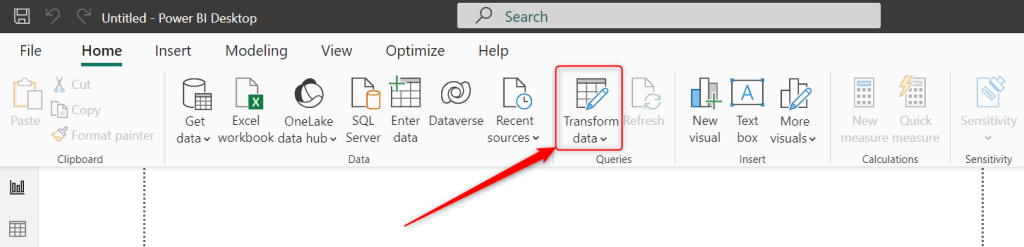
Step 2: Connect to Your Data Source
In the Power Query Editor, click on “Home” and select “New Source”. Here, you’ll find a plethora of connectors to choose from.
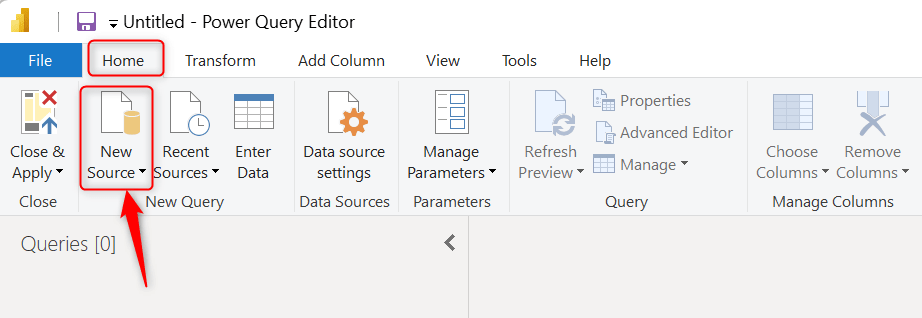
Let’s explore some of the more common ones:
Files/Folders on SharePoint: Choose the “SharePoint Folder” connector and enter the URL of your SharePoint site. Power BI will then prompt you to select the desired files or folders to import.
Text/CSV: Select the “Text/CSV” connector and browse to locate your CSV file. Power BI will automatically detect the delimiter and preview the data for you to review.
Excel Files: For Excel files, choose the “Excel” connector and navigate to the desired file. You can then select specific sheets or tables to import into Power BI.
SQL Servers: To connect to a SQL Server database, select the “SQL Server” connector and enter the server details along with your credentials. You can then choose the database and tables to import.
Snowflake: For Snowflake databases, select the “Snowflake” connector and provide the necessary connection details. Power BI will then allow you to select the desired tables or views to import.
Web for API Calls: To retrieve data from a web API, choose the “Web” connector and enter the API URL. You can then customize the query parameters and authentication method as needed.
Summary
Loading data into Power BI using the Power Query Editor is a straightforward process, thanks to its wide range of connectors and intuitive interface. By following the steps outlined in this tutorial, you can effortlessly bring data from various sources into Power BI and begin your journey towards uncovering valuable insights. In future blog posts we will dive deeper into some Connectors and see how we can efficiently transform the data at hand. Stay tuned!



 linusdata