
In this blog post, we will explore how to configure your data model and create measures in Power BI to ensure that your reports dynamically display data for the last three months, based on the month selected in a slicer.
To make our solution work we are going to need two Date Tables, the necessary relationships and a measure.
Date Tables
Let’s start with the Date Tables. The first step is to identify the table in your data model that currently contains the data you want to show and a date column. In my example this is the “flights” table with the column “DEPARTURE_DATE”. Based on this departure date I am going to create a new table called “DATE”. To do so I simply click on the tab “Table tools” and then on “New table”.
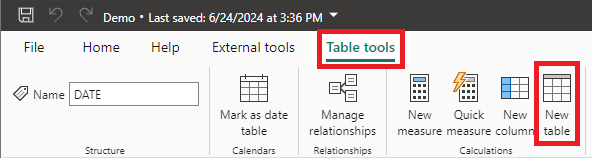
To create the new table I use the following DAX expression:
DATE = CALENDAR(MIN(flights[DEPARTURE_DATE]), MAX(flights[DEPARTURE_DATE]))This expression creates a table containing all dates between the oldest and most recent date in the “DEPARTURE_DATE” column.
Once we have created our first Date Table we can proceed by creating the second date table. The second date table is simply a copy of the first one and I am going to call it “DYNAMIC_DATE”. I create it by using the following DAX expression:
DYNAMIC_DATE = 'DATE'You might wonder why we need two Date tables to start with as ordinarily one would suffice. We need the first Table “DATE” to control our fact table. The second one (“DYNAMIC_DATE”) is used to control the first Date Table. This will make more sense once we have implemented the complete solution.
Relationships
Now that we have created the two date tables we need to create the necessary relationships. To make our solution work we need to create two new relationships. The first relationship we need to create is between the “DATE” Table and the fact table. In my example the fact table is the “flights” Table. I am going to create the relationship by using the “Date” column of my “DATE” Table and the “DEPARTURE_DATE” column of my “flights” Table.
If you are not yet familiar with relationships in Power BI, you can find a detailed overview in this blog post.
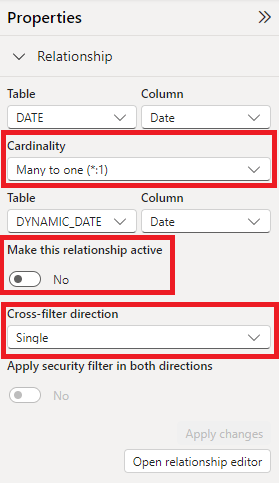
The second relationship we need to create is between the “DATE” and the “DYNAMIC_DATE” Table. We are going to use the “Date” column of both tables to create the relationship. Once the relationship is created we need to adjust it. The relationship will by default be active and have a cardinality of One-to-One (1:1). To make our solution work we need to deactivate the relationship, set the cardinality to Many-to-One (*:1) and the cross-filter direction to “Single”. To edit the relationship simply click on the line connecting the two tables and edit the properties of your relationship. The relationship should look like this:
Measure
After creating the two Date Tables and the needed relationships we are ready to create our Measure. In my example I am going to create a measure that calculates the average Arrival Delay of the flights. The measure is created using this DAX code:
Avg_Arrival_Delay_last3months =

VAR ReferenceDate = MAX('DATE'[Date])

VAR PreviousDates =
    DATESINPERIOD(
        'DYNAMIC_DATE'[Date],
        ReferenceDate,
        -3,
        MONTH
    )

VAR result =
    CALCULATE(
        AVERAGE(flights[ARRIVAL_DELAY]),
        REMOVEFILTERS('DATE'),
        KEEPFILTERS(PreviousDates),
        USERELATIONSHIP('DATE'[Date], 'DYNAMIC_DATE'[Date])
    )

RETURN result
The measure consists of three variables:
- ReferenceDate: Calculates the most recent date available in the DATE Table. This variable acts as a “starting point” for the next variable.
- PreviousDates: This variable is used to dynamically extract the last three months starting from the ReferenceDate. If you want to see the last 6 Months simply change the value -3 to -6 for example. Instead of MONTH (the last parameter in the variable) you could also use DAY or YEAR, depending on your needs.
- result: This variable actually calculates the average. We specify that we do not want our DATE Table to interfere with our fact table for the calculation of this measure by using “REMOVEFILTERS”. Additionally we specify that the measure should consider the previously defined “PreviousDates” as a context and lastly we specify that the relationship between DATE and DYNAMIC_DATE should be activated for this measure.
Visualization
To see how it works we are going to create our visualization now. In my example I have used a line chart to visualize the data. It is important that we use the Date column of our DYNAMIC_DATE Table on the x-axis and the measure we created on our y-axis. In the example I have also added a slicer where the users can select the month they are interested in.
If we now select the month September in our slicer, our visual will show data from July to September.
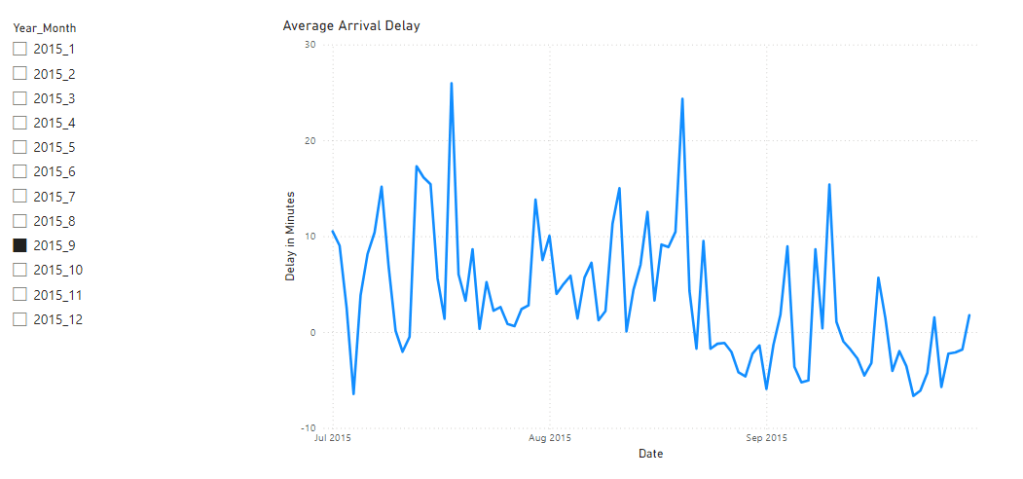
If we select July the visual will show data from May to July.

Conclusion
By using two date tables, relationships and a measure, we have built a solution that makes it possible to dynamically display the data of the last three months based on the Month selected by a user.



 linusdata