
Access management is a cornerstone of any data-driven organization. In Microsoft Fabric, access levels are designed to provide flexibility and precision, ensuring that the right people have access to the right data while maintaining security and compliance. This post will explore the various access levels in Microsoft Fabric, including Workspace-level access, Item-level access, Object-level access, and Row/Column-level access. We’ll also discuss when to use each and provide a step-by-step guide to setting them up.
1. Workspace-Level Access
What it is
Workspace-level access controls permissions for an entire workspace in Microsoft Fabric. This includes all objects within that workspace.
When to use it
Use workspace-level access when you want to manage permissions for a group of related assets collectively. For example:
- Granting a team access to collaborate on all objects within a workspace.
- Setting up admin roles for workspace-wide management.
Roles
- Admin: Full control over the workspace, including adding/removing members, publishing content, and modifying settings.
- Member: Can contribute content, edit items, and share objects.
- Contributor: Can add and edit content but cannot manage workspace settings or permissions.
- Viewer: Can only view content without editing or sharing.
You can find more detailed information about the roles here.
How to set it up
- Open a workspace
- click on “Manage access”

- click on “add people or groups”
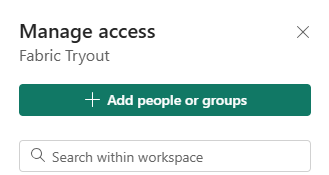
- enter the name of a person or group and select a role
- click “add”

2. Item-Level Access
What it is
Item-level access provides control over individual items, such as semantic models, reports, lakehouses or warehouses, within a workspace. Giving people or groups item-level access means, that they will only have access on the selected items and not everything within a workspace.
When to use it
- Share specific assets with users who don’t need access to the entire workspace.
- Restrict sensitive reports or datasets within a collaborative workspace.
Levels
The levels/roles you can assign will depend based on the object you want to share. A Power BI Report will have other options than a Lakehouse for example. You can find a detailed overview of the roles here.
How to set it up
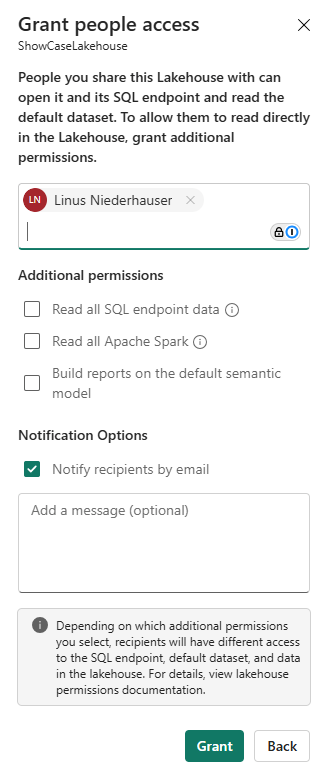
- Select the item (e.g., a dataset or report) in the workspace.
- Click on the More Options (ellipsis) and choose Manage Permissions or click on Share.

- Add users or groups and assign the appropriate access level.
- click on “grant”
Note:
If you don’t select any additional permissions the user or group can access the lakehouse via the OneLake hub. They will not be able to access any tables within the lakehouse though. This can make sense if you are trying to set up object-level or column-level access.
3. Object-Level Access
What it is
Object-level access refers to controlling visibility and interaction with specific database objects within a lakehouse/warehouse, such as tables or views.
When to use it
Object-level access is ideal for scenarios where:
- Certain tables contain sensitive data.
- You want to provide a subset of data for a particular audience.
How to set it up
You can setup object-level access using T-SQL GRANT statements.
GRANT SELECT ON <schema_name>.<table_name> TO <group_or_user_name>;4. Row/Column-Level Access
What it is
Row/Column-level access allows fine-grained control over data visibility, restricting access to specific rows or columns of a database object based on user roles or attributes.
When to use it
- Data visibility needs to align with organizational roles or regional restrictions.
- You’re working with large datasets that need to serve multiple audiences securely.
- Certain columns contain sensitive data.
How to set it up
Similar to object-level access row/column-level access can also be managed using T-SQL statements. The creation of row-level access is a bit more advanced compared to the column-level access. You can implement row-level access in a Microsoft Fabric Warehouse by using the CREATE SECURITY POLICY T-SQL statement and predicates created as functions.
The setup of column-level access is more straightforward and very similar to the object-level access. They can be defined by using T-SQL GRANT statements. The only difference to the object-level access is that you specify the columns users should be able to access within the statement as well.
GRANT SELECT ON <schema_name>.<table_name> (<column_names>) TO <group_or_user_name>;Best Practices for Access Management in Microsoft Fabric
- Principle of Least Privilege: Always grant the minimum necessary access to perform a task.
- Use Groups Over Individuals: Manage permissions through security groups to simplify administration.
- Regularly Audit Access: Periodically review permissions to ensure compliance and identify potential risks.
- Combine Access Levels: Leverage a combination of workspace, item, object, and row/column-level access to achieve precise control.


 linusdata