
- Introduction
- What Are Shortcuts in Microsoft Fabric?
- Authorization
- Why Use Shortcuts?
- Step-by-Step Guide: How to Create a Shortcut in Microsoft Fabric
- Prerequisites
- Conclusion
Introduction
Microsoft Fabric introduces a powerful feature called Shortcuts, enabling seamless access to data across different sources without duplication. Shortcuts make data more accessible, reduce storage costs, and streamline data engineering workflows.
In this post, we will cover:
- What Shortcuts in Microsoft Fabric are and why they are useful.
- The difference between Shortcuts and traditional data copying methods.
- A step-by-step guide to creating a Shortcut in Microsoft Fabric, complete with screenshots and examples.
Let’s dive in!
What Are Shortcuts in Microsoft Fabric?
Shortcuts in Microsoft Fabric allow users to reference internal and external data without moving or copying it. Instead of duplicating data into Microsoft Fabric’s OneLake, Shortcuts create a logical link to other storage locations such as:
- Internal OneLake shortcuts
- allows you to reference data within existing Fabric items
- Azure Data Lake Storage (ADLS shortcuts)
- Microsoft Dataverse
- Amazon S3
- Google Cloud Storage
This means that data remains in its original location, but users can query, analyze, and process it as if it were stored in Fabric’s OneLake.
Authorization
Internal OneLake shortcuts
The authorization to the data in the target path is handled by using the identity of the calling user. This means that the calling user must have permissions in the target location to access the data.
external shortcuts (ADLS, Dataverse, S3, Google Cloud Storage)
When using external shortcuts a delegated authorization model is used. This means that the shortcut creator needs to specify a credential for the ADLS shortcut. All access to the target data is then authorized using that credential. The supported credential types differ based on the type of external shortcuts:
- ADLS: Organizational account, Account Key, Shared Access Signature (SAS), and Service Principal
- Dataverse: Organizational account
- Amazon S3: Key and Secret for an IAM user
- Google Cloud Storage: HMAC key and secret for a Service- or User account
Why Use Shortcuts?
Here are some key benefits of using Shortcuts in Microsoft Fabric:
- Eliminate Data Duplication – No need to move or copy large datasets, saving storage and costs.
- Unified Data Access – Work seamlessly across multiple cloud storage systems.
- Real-Time Access – Get the latest data without manual refreshes or ETL jobs.
- Simplify Data Engineering – No complex data pipelines for moving data between storage systems.
- Improved Governance & Security – Maintain data security by keeping it in its original location while managing access through Fabric.
Step-by-Step Guide: How to Create a Shortcut in Microsoft Fabric
Now, let’s walk through the process of creating an ADLS shortcut in Microsoft Fabric Lakehouse.
- Navigate to your Lakehouse
- Inside the Lakhouse go either to the “Tables” or “Files” Section. In our case we are going to create a shortcut to a file. Therefore we open the “Files” section.
- Right click on “Files” and select “New shortcut”.
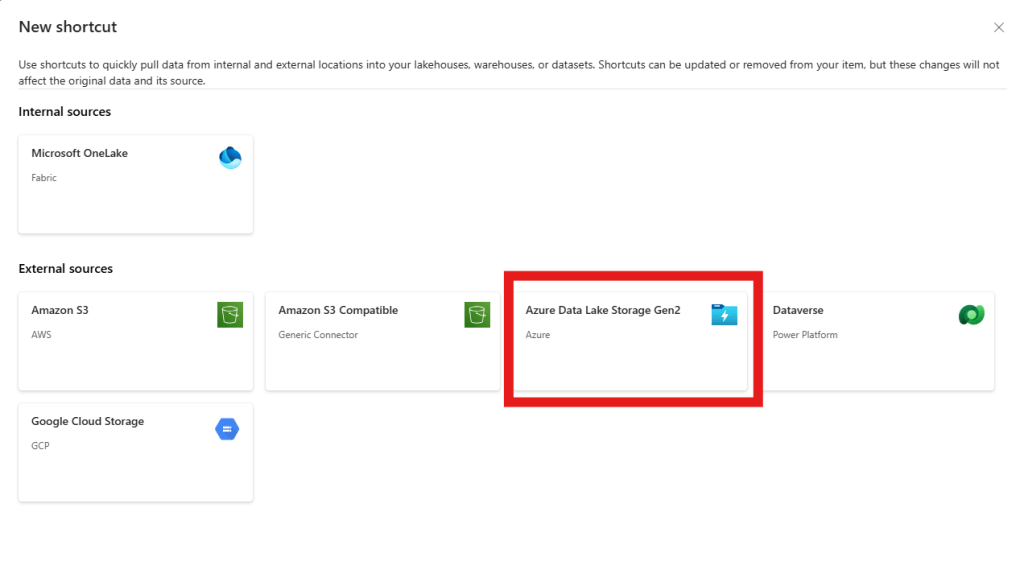
- Select the “Azure Data Lake Storage Gen2” under “External Sources”.
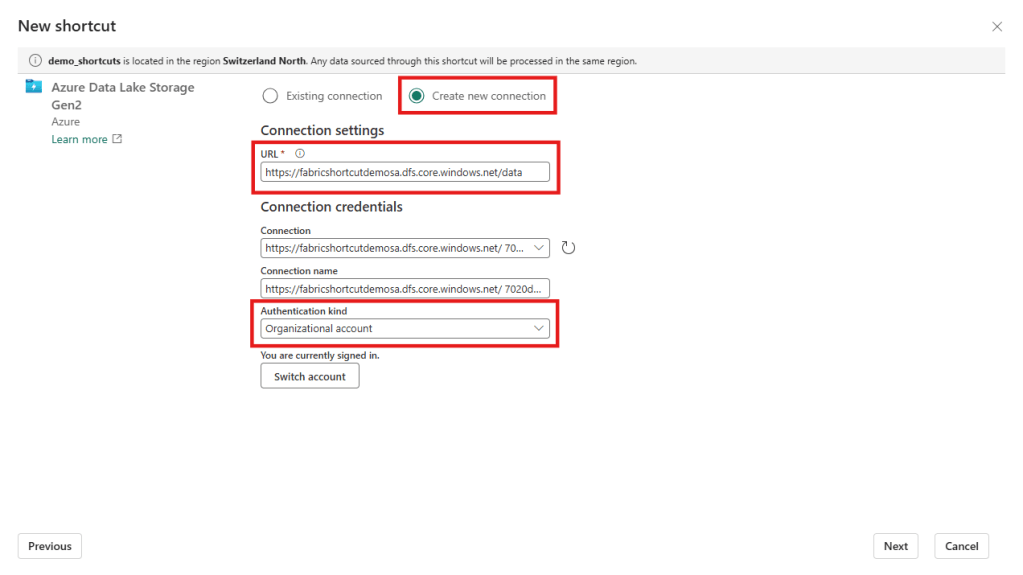
- Click on “create new connection”
- Enter the “dfs” endpoint of the container that holds your data
- Optionally: enter a name for the connection
- Select your Authentication method -> In our case we are going to use “Organizational account”
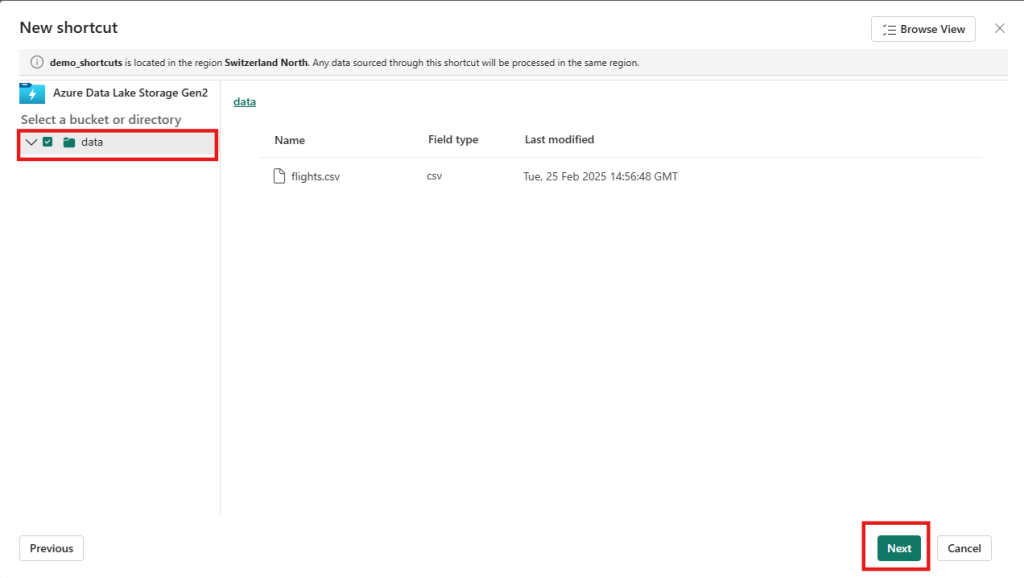
- Click on the directory. In our case the directory is going to be called “data”. To the right you will see the content of the directory you selected.
- Click on “Next”
- You will now see a preview of your shortcut. By clicking on the pen under “Actions” you can rename your shortcut if necessary.
- Click on “Create”

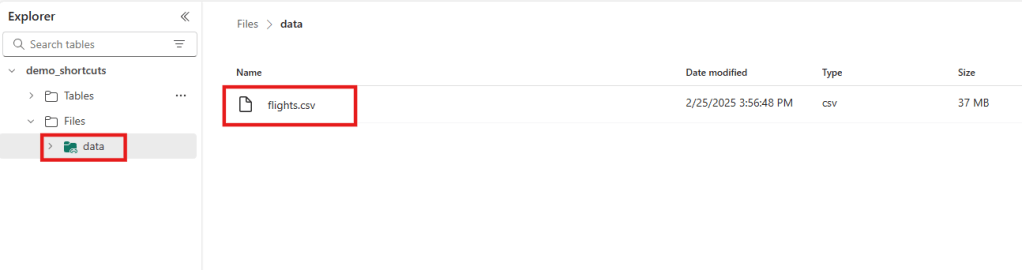
- In your lakehouse you will now see the newly created shortcut.
- By clicking on the new shortcut folder “data” we can see the “flights.csv” file and interact with it.
Once you have successfully created a shortcut you can access them via Apache Spark, SQL, Real-Time Intelligence or Analysis Services (for example in semantic models). The shortcuts can even be accessed from outside of Fabric via the OneLake API.
Prerequisites
There are some prerequisites that need to be fulfilled before you can successfully create a shortcut. Below I have collected some of them. Be aware that this list might not be complete.
ADLS shortcuts
- ADLS shortcuts must point to the DFS endpoint and include at least one container. The .blob endpoints will not work.
- In the case that your storage account is protected by a storage firewall you need to configure trusted service access for Fabric. You will find instruction of how to set this up here.
- If you are using “Organizational account” to connect to your storage account you must have one of the following roles assigned on the storage account: Storage Blob Data Reader, Storage Blob Data Contributor, or Storage Blob Data Owner
- Hierarchical Namespaces must be enabled on your ADLS Gen 2 storage account for shortcuts to work.
S3 shortcuts
- The target name must contain at least a bucket name.
- Access to the S3 endpoint must not be blocked by a virtual private cloud or storage firewall.
- The IAM user in used in the connection must have the following permissions on the target bucket: S3:GetObject, S3:GetBucketLocation, S3:ListBucket
Google Cloud Storage shortcuts
- The target path must contain at least a bucket name.
- You can either use the bucket specific endpoint or the global endpoint.
- If the bucket specific endpoint is used the account used in the connection must have the following permissions: storage.objects.get, storage.objects.list
- If the global endpoint is used the user must additionally have the storage.buckets.list permission.
Conclusion
Shortcuts in Microsoft Fabric provide a new way to access external data efficiently without unnecessary duplication. They help streamline data engineering workflows, improve governance, and optimize storage costs.
By following this guide, you can quickly set up Shortcuts in Microsoft Fabric and start leveraging their benefits.


 linusdata